Universal Windows XP Drivers for free downloads

All windows xp drivers for free download.

Universal XP Driver CD
Soft drivers for over 50.000 hardware components

No more need to spend hours on-line browsing for drivers !
(XP and win2k platforms only)
When you get those annoying "Yellow question marks" in your device manager,
Just pop the Universal Driver CD in and Windows will automatically search
the comprehensive drivers base that's on it.


This CD, contains software drivers for over 50,000 hardware components from brands such as Dell, HP, Compaq, IBM, Sony, Toshiba, Panasonic, as well as hardware component manufacturers Intel, 3Com, VIA, nVidia, ATI, SoundMax, and many more.


 Link_2 
Download Both the files and Extract in a new folder and enjoy!!!

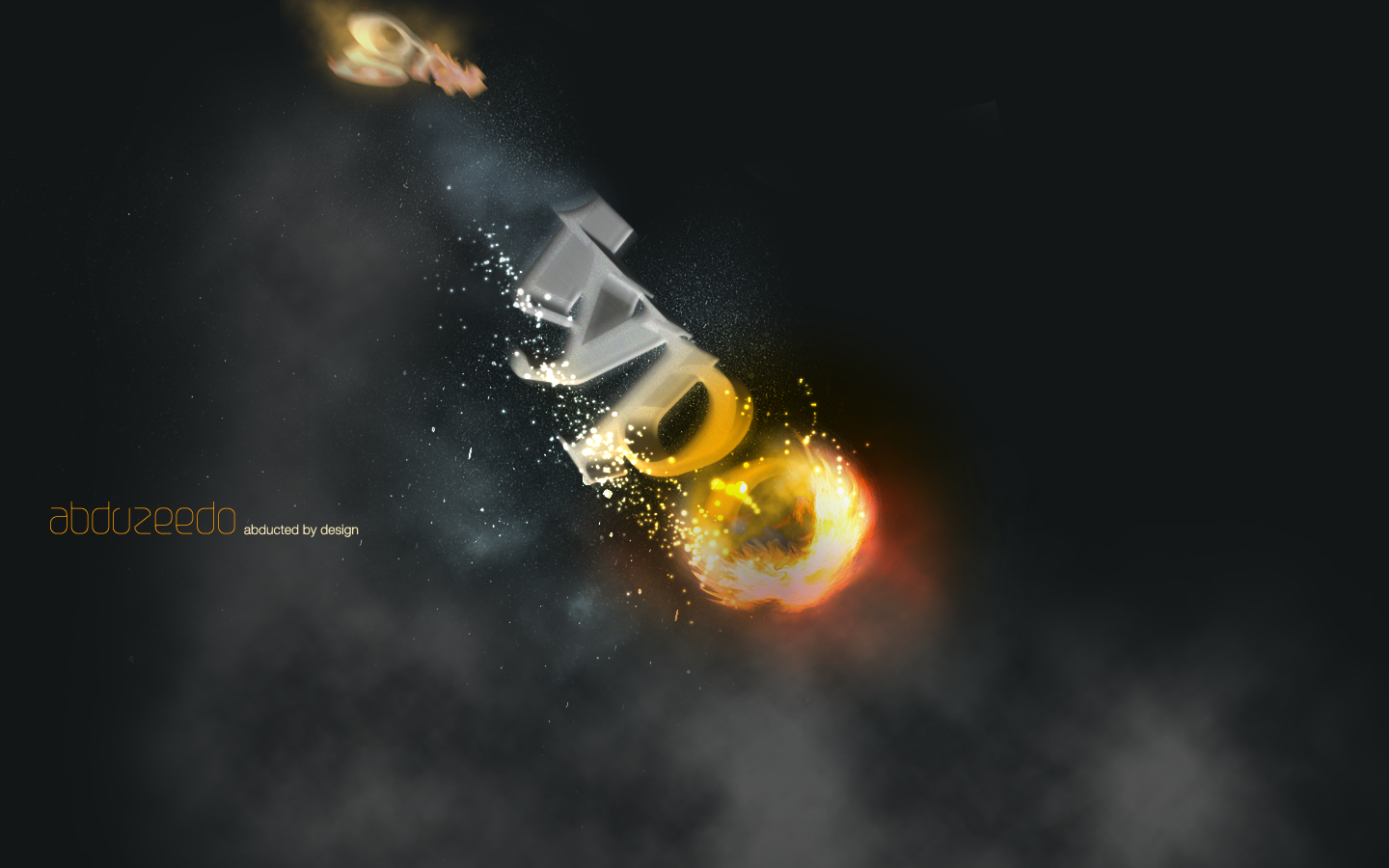
Create a Flaming Effect on Text in Photoshop

Take typography one step further by having text falling from the sky in a burning inferno. Yes, this is the text-on-fire tutorial to end all tutorials. It uses a little Illustrator for the text and a lot of Photoshop to burn up the screen!

In previous tutorials you’ve seen two smoke effects that I’ve created, but let’s face it, you can’t have smoke without a fire somewhere. So in this tutorial, I will show you how to create a fire effect similar to when a spaceship or comet enters the earth’s atmosphere. The image we’ll be creating is inspired by a Nike Ad I saw some time ago. I’m not sure what the URL is. If anyone knows it, please link us up in the comments.
It’s always a good idea to keep your eyes open for inspiration for effects and designs no matter what you are doing. Graphics are everywhere and you can learn a lot
by looking at what other people do. Now on to the tutorial!

Step 1

First create a new document and fill it with a dark grey.
Amazing Fire Tutorial

Step 2

Create a new layer, call it “Clouds,” and using the Lasso Tool (L), make a selection similar to the one I’ve shown below.
Set your background color to a 50% grey and the foreground to a dark grey. Go to Filter > Render > Clouds and, holding the Alt key, create clouds. After that go to Images > Adjustments > Levels, and change the input levels and output levels until you make the clouds neither too dark nor too light (see the image shown).
This layer will be on top of the others.
Amazing Fire Tutorial

Step 3

Create another layer and repeat Step 2, but this time just change the background color from 50% gray to a blue or green color. This will create a small cloud, lighter than the big one.
Amazing Fire Tutorial

Step 4

Now we’ll switch to Adobe Illustrator to create some text. I used Times New Roman for the font. After that go to Effect > 3D > Extrude and Bevel. Now we will create the 3D text. Rotate the object and change the perspective. You can use the same values as I did (shown below).
Amazing Fire Tutorial

Step 5

  1. Copy the 3D text and paste it in Photoshop.
  2. Place it in the center and add some Noise (Filter > Noise > Add Noise).
  3. Now let’s change the Layer Style. First add Bevel and Emboss.
  4. After that, let’s add a Gradient Overlay.
Amazing Fire Tutorial

Step 6

  1. Duplicate the Type layer and add a Motion Blur (Filter > Blur > Motion Blur).
  2. Set the angle of the blur to -53.
  3. Change the layer mode to Linear Dodge (Add).
  4. Create a Folder, call it “Typo,” and move these two layers into it.
Amazing Fire Tutorial

Step 7

Create a new layer and repeat the Step 2, this time using a selection as shown going out the back of the letter T. This will create the trailing smoke.
Amazing Fire Tutorial

Step 8 Creating the FIRE

1 – Create a new layer and call it “fire1.”
2 – With the Elliptical Marquee Tool (M), create a selection.
3 – Set the background color to light grey and the background to black.
4 – Create clouds as we did in Step 2.
5 – Change the Levels to increase the contrast;
6 – Change the Hue/Saturation with Colorize selected until you get an orange/yellow color.
Amazing Fire Tutorial

Step 9

Create a new layer, call it “blazes,” and repeat Step 8. After that, duplicate the layer and call it “flames.” Create a folder and move the Fire1, Blazes, and Flames layers to this folder and call the whole folder “Fire.” It will be on top of the Typo layer.
Amazing Fire Tutorial

Step 10

Select the layer “blazes” and go to Filter > Liquefy. There select the Turbulence Tool (T). Now, on the edges of the fire, start creating some blazes. Use it like you would the smudge tool.
Amazing Fire Tutorial

Set 11

After the Liquefy, go to Edit > Transform > Warp and change the blaze’s form to something similar to the image below. After that apply Filter > Sharpen > Sharp.
Amazing Fire Tutorial

Step 12

  1. Create a new layer and call it “yellow color.”
  2. Create an ellipse selection with 30px feather and fill it with white.
  3. After that edit the Layer Style and apply a Color Overlay using an yellow color and Multiply for the layer’s blend mode.
Amazing Fire Tutorial

Step 13

The order and the Blend modes for the fire are:
  1. Flames: Lighter Color
  2. Blazes: Normal
  3. Fire1: Lighten
  4. Yellow Color: Multiply

Step 14 Sparks

For the sparks we will use brushes. Create a folder and call it “Sparks.” It will be on top of the Fire folder.
  1. Inside the folder, add a new layer.
  2. Fill it with black and change the Blend Mode to Color Dodge.
  3. Select the Brush Tool and let’s create a brush.
  4. In Brush Tip Shape, change the Diameter to 12, and increase the spacing.
  5. Select Scattering and set Scatter to the 1000% and Control to off. Change the Count to 2 and Count Jitter to 100%.
  6. Select white and start painting some sparks.
Amazing Fire Tutorial

Step 15

Create a new layer and repeat the Step 14 but now change the Scatter Option to 0%. Start creating some single line sparks like swirls.
Amazing Fire Tutorial

Step 16

Here I used the Gomedia Spraypaint brushes to create those tiny little sparks, but you can repeat the step 14 changing the Brush size only. Basically, create a new layer, put it behind the others, fill it with black, change the Blend Mode to Color Dodge, see the color to white, and create the sparks.
Amazing Fire Tutorial

Conclusion

Amazing Fire Tutorial

Click the image above to view a full screen version of the final image
.
Although it looks complicated, the process is actually very straightforward. I used only three or four filters, brushes, and of course, the Layer Styles. It is a mix of two other tutorials I wrote: Creating Smoke and Magic Lighting Effect in Photoshop. One thing I have to say is that it̢۪s impossible to create exactly the same fire twice, and that̢۪s because the filter that renders the clouds does so randomly. As always, the idea is to play around with Photoshop to get your own unique results. Hope you enjoyed the tutorial!

A Slick Supernatural Text Effect in Photoshop

In this tutorial we’ll be creating a smoky night effect on text to give it an eerie supernatural sort of feel. It’s a good exercise in using the Wave distortion filter…

Step 1

The first thing we need for our image is a background. We’re going to use a quick star-sky background. There are lots of tutorials around for this effect, and it’s actually a simple two-step process: clouds + noise.
So on a new blank canvas, start by choosing a dark blue color – #18323a – and black and then
go to Filter > Render > Clouds.

Step 2

Now create a new layer, fill it with black, and go to Filter > Noise > Add Noise and use values roughly as shown below.

Step 3

Now that is way too much noise, so go to Image > Adjustment > Levels (or Ctrl+L) and bring those sliders together until you see most of the ‘stars’ vanish as shown.

Step 4

Now set the stars layer’s blending mode to Screen so that the black vanishes and just the stars remain. It’s still a bit too even though, so add a Layer Mask to the layer, and with a large fat brush just mask out blobs so that it seems a little less even. See the screenshot below to see the layer mask I added…

Step 5

In this step, I added a radial gradient layer going from the white in the center to black at the edges and set the layer to Overlay and 45% Opacity. The effect is just to darken the edges and it’s not an essential step. In any case you should have something like this image shown below.

Step 6

Now we add our text. I’ve used a font called Cuez_Ver6 which looks suitably strange. If you go to a free font site and look under sci-fi or the like, you’ll doubtless find something similar. Actually it’s quite unreadable really (especially the r), but who cares, it looks cool!

Step 7

Next we’re going to add some layer styles. You can get a sample PSD file at the end of this tutorial, but because we’re switching to a pay system for the samples, I’ll go through the settings in case you don’t want to buy the file.
First I’ve given the text a Color Overlay of straight black (#000000). Then because the basis of this text effect is a creepy light, I added inner glows. First an Inner Glow as shown below, and then an Inner Shadow with color #54a4ff, blend mode Screen, distance 1, size 2, angle -90′, and everything else default.

Step 8

Next we use a textured Bevel and Emboss to give the style some unevenness. You can see the Bevel settings below. The Texture I added is just one of the standard ones that comes with Photoshop that looks like bubbles. And I set the Depth to -79.
As you can see below, this makes the inner glow look a lot more uneven.

Step 9

Finally I added a Drop Shadow and Outer Glow, both set using Screen and the color #008ac5. I used both so that I could make one of them a small glow and one a really spread out glow, so the distances were 10px and 100px.

Step 10

Ok, so here’s our text with the Layer Style applied. It’s off to a good start, but you can only do so much with Layer Styles, so now we do some good ol’ manual effects.

Step 11

First of all, duplicate the text, right-click the layer, and remove the layer styles. Then change the color of the text to a fluorescent blue (#5cdbff). Then press the up arrow once to move it one pixel up. This will give a sort of glow effect as shown below.

Step 12

Ok, this next step is the key step in this tutorial.Duplicate the text layer with the fluoro blue color. Then go to Filter > Distort > Wave. You can use mostly the default settings, except where it has Scale. I’ve set this to just 10% and 10%. This will distort the text, but only a little bit. If you leave it at 100% the effect is pretty full-on!
(Note: In the image below, I moved the text down so that it would be clear that I was applying the wave filter to it.)

Step 13

After you have distorted text, go to Filter > Blur > Gaussian Blur and use a value of 4px. Then set the Opacity to 20%.
In the screenshot below, I’ve switched off the main text so that you can see the distorted text.

Step 14

Now hold down Ctrl and click on that text layer to select it’s pixels and then go to Select > Modify > Contract and use a value of 5px. Then press Shift+Ctrl+I to invert the selection and hit Delete. This should leave a thin wispy looking remnant of your text.
Now switch on the main text layer, and it should look like a tiny bit of smoke coming off the letters.

Step 15

Now duplicate that layer and go to Filter > Distort > Wave and distort this copy even more.
Now repeat this step a couple of times and vary what you do with the wave. So you might want to press Randomize sometimes, or sometimes distort the copy a few times. Also I used a mix of blending modes on the different copies of the smoke. Two of them I had no blending mode set, two of them I used Overlay, and for another two I used Hard Light.
Also it’s a good idea to mix up whether they are behind or in front of the text. Remember you want the effect to look like wisps of smoke coming off the letters.

Step 16

Now that we have our small smoke sorted out, it’s time to add some bigger wisps.
So again duplicate the fluoro blue text layer.

Step 17

We now apply another Wave distortion, but this time where it has Scale, set the horizontal to 5% and the vertical to 100%. This will make the shapes become very elongated as shown. Once you’ve applied the wave, just repeatedly hit Ctrl+F to keep doing it over and over again until the text has been completely distorted into long wispy shapes.

Step 18

Once you have a good smoky-looking effect, set the layer blending mode to Hard Light and you should have something similar to the image shown below.

Step 19

Now duplicate that last layer and run a Gaussian Blur by going to Filter > Render > Gaussian Blur with a value of 4px. This will make our layer look a little softer.
After that, get a large soft eraser brush and just brush away some of the bits at the bottom and top so that it fades off as it approaches the edges.
You may also want to repeat these last couple of steps to add more wisps.

Step 20

Here I’ve removed the bottom of those wisps and added a few more subtle copies. Also I added some extra type above the main text just to make it look a bit cooler.

Step 21

Next I moved one or two of the wispy layers in front of the text so that it looks like the smoke is trailing over the letters. In particular look at the E in super to see what I mean.

Step 22

Finally, to give it a more eerie feel I added a layer above all the others and with a large brush painted some green on top, then set the layer blending mode to Color to make it so that the image is a blue-green coloring. And we’re done! One slick, smoky effect!

Using Light and Shade to Bring Text to Life

The best book I’ve ever read on drawing is one called Drawing on the Right Side of the Brain. After reading it, I’m still pretty bad at drawing, but I did learn a lot about light and shade. In this tutorial we are going to take some very basic principles of light and shade to make a rather impressive-looking text effect.

Light Sources

So before we start the tutorial, here is a little diagram about how light might hit an object. Here we have a square object in the middle with light coming from the top left. You can see that where the light hits the object, a shadow is cast on the other side. Note that the shadow is not a Photoshop drop shadow, which makes the object look like it’s hovering above the canvas. Here we want the object to look like it’s a three dimensional thing stuck on the canvas, extruding
if you like. Now tell me what other Photoshop tutorial site gives you diagrams? It’s like being back in school!

Step 1

We begin the tutorial by drawing a subtle Linear Gradient from dark grey to darker grey. Note that because we want our light to come from the top left, that’s where the lighter part of the document is.

Step 2

Now we place some text. I’ve used a very cool font called Agency FB, which has a condensed, hard-edge feel to it. You should make the text a grey-ish blue color – #c2c8d4 to be precise.

Step 3

Next Ctrl-click the text layer and create a new layer above it. In the new layer, with that selection still held, draw a linear gradient of #495a79 to transparent from bottom right to left. So in other words you are darkening the bottom right as shown.

Step 4

Set your foreground color to Black (you can do this by pressing the letter ‘D’ on your keyboard which restores the defaults).
Now Ctrl-click the text layer again and create a new layer beneath the text layer. Now press the down arrow on your keyboard once and the right arrow on your keyboard once. Then press Alt+Backspace to fill it with black. Then press down and right again one time and fill with black. Each time you will be moving 1px right and 1px down. You should repeat this process about 30 times (which is why it’s important to use Alt+Backspace instead of the Fill tool).
Note also that to move the selection but not the fills when you press your arrow keys, you have to have one of the Marquee tools on. If you switch to the Move Tool (V) when you press down and right you will actually move the black fill as well as the selection and will just be filling the same pixels over and over.

Step 5

Here’s what you should now have. Now deselect and make sure you are on the shadow layer, then go to Filter > Blur > Motion Blur and use values of -45 degrees and a distance of 30px.

Step 6

Set your shadow layer to Multiply and about 40% Opacity and then hold down Shift and press the down arrow and then the right arrow. This will move your object right and down 10px each (Shift tells Photoshop to go 10px at a time instead of 1). Now you may have some of the blurred parts of the shadow sticking out to the top and left of the object. If this is the case, grab a small soft eraser and gently erase away anything which shouldn’t be shaded (remember the diagram at the beginning).

Step 7

Next duplicate the shadow layer, hold Shift and move it down and right again. Then run the Motion Blur filter again with a distance of 50px this time and set this layer to Multiply and 20% Opacity. This is just to give our shadows more of a trail off.

Step 8

Now create a new layer above all the other layers, hold down Ctrl and click the main text layer to select its pixels and back on your new layer fill the selection with White. Don’t let go of the selection just yet though. Instead press down and right one time to move 1px away and then hit Delete.
Set this thin white line layer to about 80% Opacity.

Step 9

As you can see, the thin white line gives a sort of highlight effect where the light source is hitting the text and gives the impression that the text is more three dimensional.

Step 10

Next we want to create some streams of natural light. Create a new layer above all the others and draw four or five white rectangles approximately similar to those shown (i.e. getting fatter as they go down).

Step 11

Now press Ctrl+T to transform and rotate and enlarge the rectangles as shown. Now normally you’d press Enter when you’re finished, but this time don’t let go just yet. Instead, right-click and you will get a pop up menu showing you other types of transforms you can do. Choose Perspective. The reason it’s important to do this in one step is so that you don’t lose your bounding box. So take the top left two points and bring them closer together so that the light appears to be coming from one place and spreading out.

Step 12

Here we have our four strips of "light." Now set the layer to Overlay and 20% Opacity and then go to Filter > Blur > Gaussian Blur and give it a blur radius of 6px.

Step 13

You should now have something that looks like this.

Step 14

Now since those thin strips are meant to be light, it would make sense if our highlight layer only showed up where the light was hitting right? So Ctrl-click the light layer and then click on the highlight layer from earlier, then while the selection is still on, click on the Add Layer Mask button (it’s the one at the bottom of the layer palette to the right of the ‘f’ icon). This will create a Mask that only shows the highlight layer where the light overlaps it.

Step 15

So you could stop here; it’s already looking pretty good, but we’ll finish this effect off by adding some warm lighting.

Step 16

So first of all create a new layer just above the background and fill it with a pinkish color – #9d506c.

Step 17

Now set the pink layer’s blending mode to Colour and the opacity to 20%. This gives our background a nice reddish-warmth. Over the top of this we can now mix in some yellows. If we don’t put in the reddish cast underneath, the result comes out looking overly yellow and not particularly real.

Step 18

Next we create a layer just above the pink. Fill it completely with white and then go to Filter > Render > Lighting Effects. I don’t often use Lighting Effects, but it does have one very cool preset called the Two O’clock Spotlight, which you can select by going to Style at the top and looking through the options. You can pretty much use this as default, but for our purposes it helps to extend the ellipse to make it a little longer (i.e. the spotlight is a little further off).

Step 19

Now we set the lighting layer to Overlay and you have something like shown below. Now duplicate that layer, move it above all the other and set it to 40% Opacity. This makes sure that our warm lighting is also interacting with the text and not just the background.
http://psd.tutsplus.com/tutorials/text-effects-tutorials/using-light-and-shade-to-bring-text-to-life/

Conclusion

Finally, we duplicate the top lighting layer one more time and set it to 65% Opacity, then click the Add Layer Mask button on the layers palette again and draw a linear white to black gradient from top left to bottom right. This makes the extra lighting layer fade off as it goes down right.